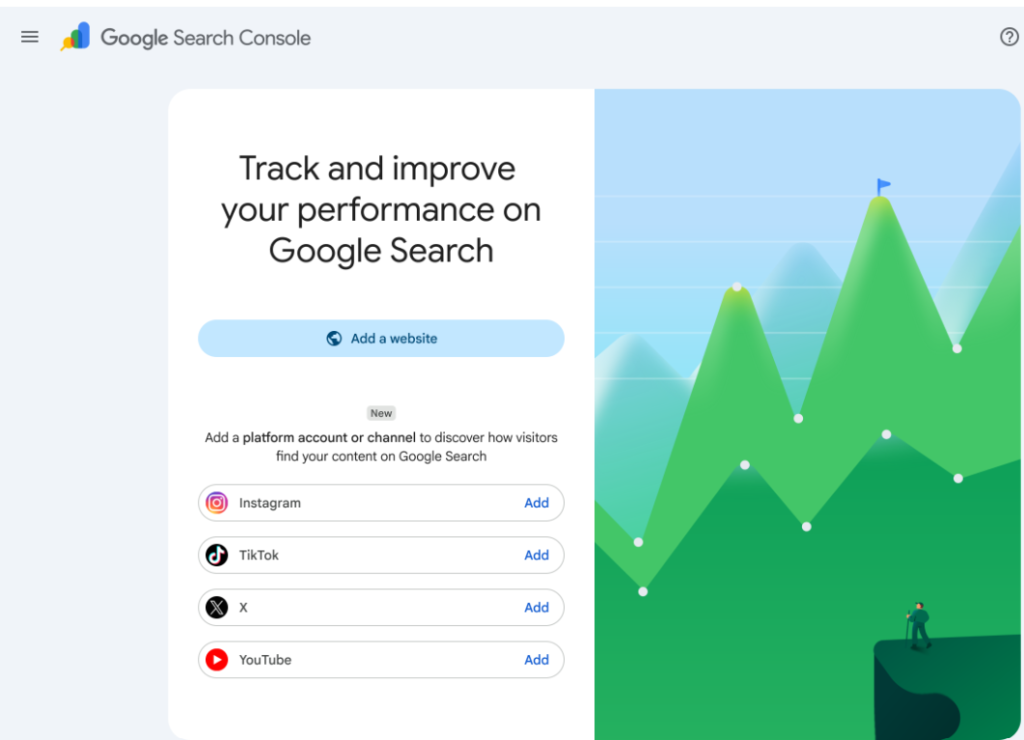


- Performance Data: Tracks clicks, impressions, and the specific search queries driving users to your social posts.
- Insights Data: Provides relavant visibility into traffic trends, top-performing posts, and how your account is discovered.
Step 1: Launching Google Search Console Correctly
Most people rush the setup and miss details that cost them accurate data for months. Here’s the process worth doing properly:
- Verify the right property type. Choose a Domain property (covers http, https, www, and all subdomains) over a URL-prefix property whenever you can — it gives you the full picture in one dashboard instead of fragmented data across variants.
- Verify ownership correctly. DNS verification is the most stable method since it survives theme changes, plugin swaps, or a site migration. HTML tag verification is fine too, but it breaks if someone accidentally removes the tag during a redesign.
- Submit your XML sitemap immediately. Go to Sitemaps in the left panel and submit your sitemap URL (usually /sitemap.xml or /sitemap_index.xml if you’re on Yoast SEO or a similar plugin). This tells Google exactly which URLs you want crawled and indexed.
- Connect Search Console to Google Analytics. Linking the two tools inside GA4’s admin settings lets you cross-reference search queries with on-site behavior — bounce rate, time on page, conversions — instead of looking at rankings in isolation.
- Set up email alerts. Under Settings, enable alerts for coverage issues, manual actions, and security problems so you catch indexing drops before they become a real crisis.
Once it’s live, give it 48–72 hours before expecting meaningful data. Search Console reports typically run 2–3 days behind real time.
Step 2: Tracking Social Media Traffic Alongside Search Data
Search Console only reports organic search traffic – it won’t show you social clicks directly. To get a complete picture, you need to combine it with proper tracking:
- Use UTM parameters on every social link. Tag links shared on LinkedIn, Instagram, Facebook, and X with consistent utm_source, utm_medium, and utm_campaign values so GA4 can bucket that traffic cleanly instead of lumping it into “referral” or “direct.”
- Check the Referrals report in GA4. This shows exactly which platforms are sending traffic and how those visitors behave once they land — a metric Search Console can’t give you on its own.
- Watch for indirect SEO lift from social. Content that gets heavy social engagement often gets crawled and indexed faster, and backlinks referencing that content tend to follow. You can spot this by comparing spikes in Search Console’s “Discovered” and “Crawled” states around the dates a post goes viral.
- Track branded search increases. A surge in branded queries inside Search Console’s Performance report shortly after a social push is a strong signal that your social content is driving people to search for your brand directly — one of the clearest indirect SEO wins social media provides.
Step 3: Image and Video Analytics Tracking Inside Search Console
Visual content is frequently ignored in SEO audits, but it has its own dedicated reporting inside Search Console:
- Performance report, filtered by Search Type. Switch the Search Type filter to “Image” or “Video” to see impressions, clicks, average position, and CTR specifically from Google Images and Video search — separate entirely from your regular web search numbers.
- Image indexing depends on context. Google needs descriptive file names, meaningful alt text, and surrounding body copy that relates to the image to understand and rank it. Generic file names like IMG_2031.jpg carry zero SEO signal.
- Video needs structured data. Add VideoObject schema markup (name, description, thumbnailUrl, uploadDate, duration) so Google can generate rich video results and understand what the video covers without watching it.
- Submit a dedicated image or video sitemap if your site depends heavily on visual content — this speeds up discovery significantly compared to relying on the crawler to find media naturally through your HTML.
- Compress without destroying quality. Large, unoptimized images slow down Core Web Vitals, and Core Web Vitals are a confirmed ranking factor. Tools like TinyPNG or WebP conversion keep files light without visible quality loss.
Step 4: Fixing Link Sources and Internal Interlinking
Search Console’s Links report is where most sites discover problems they didn’t know they had:
- Top linked pages shows which of your pages attract the most external backlinks — these are your authority pages, and they should be interlinking generously to newer or weaker content to pass that authority through your site.
- Top linking sites tells you who’s referencing you externally, which is useful both for relationship building and for spotting low-quality or spammy domains you may want to disavow.
- Internal links report reveals orphan pages — content with few or no internal links pointing to it. Orphan pages are notoriously hard for Google to find and rank, no matter how good the content is.
A solid interlinking strategy follows a few simple rules: link from high-authority pages down to newer content, use descriptive anchor text instead of generic phrases like “click here,” keep internal links relevant to the actual topic of the linking page, and avoid link-dumping dozens of internal links into a single post — quality and relevance beat quantity every time.
Step 5: Getting H1, Meta Title, and Meta Description Right
These three elements are small, but Google and your readers both use them as the first signal of what a page is actually about.
H1 tag
- Every page should have exactly one H1 — never zero, never multiple.
- It should closely match search intent and ideally include your primary keyword naturally, without keyword stuffing.
- It doesn’t have to be identical to the meta title, but it should reinforce the same core topic.
Meta title
- Keep it under roughly 60 characters so it doesn’t get truncated in search results.
- Lead with the primary keyword, followed by a supporting benefit or modifier.
- Make every title on your site unique — duplicate titles confuse both search engines and readers.
Meta description
- Aim for 150–160 characters.
- Treat it like ad copy: it should sell the click, not just describe the page.
- Include a natural call to action and your target keyword, since Google sometimes bolds matching terms in the results.
Yoast SEO (or a comparable plugin) will flag missing or oversized titles and descriptions automatically, but running through this checklist manually on your top-performing pages at least once a quarter catches details automated tools miss — like a meta description that technically fits the character count but reads awkwardly or fails to reflect a page that’s since been updated.
Bringing It All Together
None of these pieces work well in isolation. A page can have a perfect H1 and meta description and still underperform if it’s orphaned with no internal links pointing to it. Image content can be beautifully optimized and still go unindexed if there’s no sitemap submission. Social media can drive a wave of traffic that never shows up as a ranking improvement if you’re not watching branded search volume in Search Console afterward.
Set up Search Console properly first, connect it to Analytics, and build a habit of checking the Performance, Coverage, and Links reports weekly rather than only when something looks wrong. Combine that with disciplined interlinking and clean, purposeful H1s, titles, and descriptions, and you’ll have a genuinely complete picture of how your content performs — from the moment it’s published to the moment it starts ranking.