

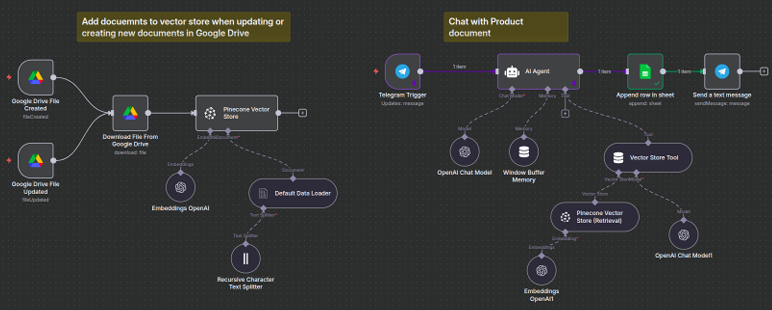

Objective: Build a RAG-based automation workflow using n8n that processes customer queries for the XSound Pro Headphones. The workflow generates responses grounded in the product documentation.
Problem statement: Organizations often receive a large volume of customer queries. Staff must manually search knowledge bases, draft responses, and maintain records. This manual process is slow, error-prone, and inconsistent, which leads to delayed responses and a poor customer experience.
To address this, an automated Retrieval-Augmented Generation (RAG) pipeline needs to do the following:
- Instantly capture customer queries.
- Retrieve relevant context from structured or unstructured knowledge sources (retriever component).
- Generate accurate, context-aware answers using AI (generator component).
- Store each query–answer pair in a structured format for traceability.
- Send personalized responses without human intervention.
This project uses n8n for workflow automation, Telegram to capture queries and send back responses, Google Sheets for data capture and storage, and a RAG pipeline for retrieval plus generation. Together, these tools show how businesses can streamline customer support, ground responses in reliable knowledge sources, and deliver faster, more consistent query resolution.
User Scenario
Consider a customer support team that wants to handle repetitive queries efficiently. A Telegram bot is created and shared with customers so they can submit queries and get a response. As soon as a customer submits a query, an n8n workflow initiates a RAG pipeline:
- Retriever step: searches uploaded knowledge sources (company FAQs, policy documents, PDFs) to fetch the most relevant context.
- Generator step: an AI model uses this retrieved context to generate a precise, grounded answer.
- The customer query and the generated response are appended to a Google Sheet, forming a traceable query–response pair.
- The customer automatically receives the AI-generated response through the Telegram bot.
This no-code RAG workflow resolves queries instantly with knowledge-grounded responses. It reduces support staff workload and improves customer satisfaction through consistent, reliable communication.
Steps to Build the Workflow
Step 1: Start a self-hosted n8n instance on GitHub Codespaces
- Go to GitHub and log in at github.com.
- Open GitHub Codespaces at github.com/codespaces.
- Start a blank codespace: go to Blank » Use this template. Your codespace should now be created.
Prerequisite: you need Node.js installed. n8n requires a Node.js version between 20.19 and 24.x. To check your installed version, run node -v in the codespace terminal.
- To install n8n globally, run
npm install n8n -g(this can take 4–5 minutes). - Go to the Ports tab next to the Terminal tab and forward port 5678.
- Copy the forwarded address for use in your .env file. Hover over the Forwarded Address link and select “Copy Local Address.”
- Create a new file named .env in the codespace and add your environment variables (below). Use your port’s forwarded address exactly, without extra spaces or characters.
n8n environment variables
N8N_HOST=0.0.0.0
N8N_PORT=5678
N8N_PROTOCOL=https
WEBHOOK_URL=ADD_YOUR_FORWARDED_ADDRESS_HERE
N8N_EDITOR_BASE_URL=ADD_YOUR_FORWARDED_ADDRESS_HERE
N8N_WEBHOOK_TUNNEL_URL=ADD_YOUR_FORWARDED_ADDRESS_HERE
Load the environment variables and start n8n by running source .env followed by n8n start. Log in, and n8n should now be visible.
Step 2: Connect Google Drive and OpenAI nodes
- Create a new folder in Google Drive, e.g. DOCS_File_RAG.
- Download the product document (Product XSound Pro Headphones.pdf) and upload it to that folder.
- Edit the Google Drive File Created node, then go to Credential to connect with » Create new credential » Connect using OAuth2.
- Get your Client ID and Client Secret (see the video reference), then click “Sign in with Google.”
- Select your Drive folder and run Fetch Text Event. Add credentials and test the Google Drive File Updated and Download File From Google Drive nodes as well.
- Add your OpenAI API key to the Embedding OpenAI node (text-embedding-3-small, Dimensions=512) and the OpenAI Chat Model node (gpt-4o-mini).
Step 3: Set up the Pinecone Vector Store node
- Go to pinecone.io and log in.
- Create an index: Default project » Database » Indexes » Create index. Note: a free Pinecone account allows only a single index.
- Fill in the details — Index Name: my-product-files; Configuration: text-embedding-3-small (Dimension=512); Capacity mode: Serverless; Cloud Provider: aws; Region: Virginia — then click Create index.
- Go to API keys » Create API key, name it, and generate the key.
- Add the Pinecone API key to the Pinecone Vector Store node. Set Operation Mode to Insert Documents and Pinecone index to my-product-files, then test and execute the node. The vectors should now be stored in Pinecone.
Step 4: Create a Telegram bot
- Go to web.telegram.org/k/ and log in by scanning the QR code or entering your phone number. You may need the Telegram app on your phone.
- Search for BotFather and select it — this is Telegram’s tool for creating and managing bots — then click Start.
- Type /newbot and provide a name (e.g. Customer Support Bot) and a username (e.g. Grp18CustomerSupportBot).
- Once ready, you’ll get a Bot URL and an API Access Token. Open the Bot URL and click Start — your Telegram bot is now ready.
Step 5: Configure the Telegram Trigger node
- Edit the Telegram Trigger node and add new credentials using your Telegram Bot Access Token.
- Set Trigger on: Message.
- Click Execute step, then send a test message to the bot. It may show an error at first but should succeed within a few seconds.
- After a successful run, pin the data so you can reuse the same record to test the other nodes.
Step 6: Set up the Pinecone Vector Store (Retrieval) node
- Edit the node and add your Pinecone API key.
- Set Operation Mode to Retrieve Documents and Pinecone index to my-product-files. You don’t need to test this node separately — test it later by running the AI Agent node.
Step 7: Configure the AI Agent node
Edit the AI Agent node and set its system message so it only answers from the product documentation, uses the company_documents_tool to retrieve information, and declines unrelated or unanswerable questions instead of guessing. Then test and execute the node.
Step 8: Log responses in a Google Sheet
- Create a new Google Sheet named “Product Query Responses” with two columns: Query (the customer’s Telegram message) and Response (the AI Agent’s generated answer).
- Edit the Append Row in Sheet node, create a new credential using the same Client ID and Client Secret from the Google Drive nodes.
- Set Resource: Sheet with Document, Operation: Append Row, and select your Document and Sheet.
- Set Column Mode to Map Each Column Manually and map your columns, then test and execute the node.
Step 9: Send the response back through Telegram
- Edit the Send a Text Message Telegram node and reuse the credentials from the Telegram Trigger node.
- Set Resource: Message, Operation: Send Message, Chat ID: (from Telegram), and Text: (from the AI Agent).
- Under Additional Fields, leave “Append n8n Attribution” switched off, then test and execute the node.
Step 10: Activate and test the workflow
- Save and activate the workflow.
- Open your Telegram bot and ask questions such as: What colors are available? What noise-cancellation modes are available? How long does the battery last with ANC on and off?
- Check that query–response pairs are added to the Google Sheet and that responses arrive in Telegram. Try it from your phone too, and debug if anything doesn’t work.
Frequently Asked Questions
What is an n8n RAG workflow used for in customer support?
An n8n RAG (Retrieval-Augmented Generation) workflow automatically captures customer queries, retrieves relevant answers from your product documents, and sends a grounded, accurate response. No one has to manually search knowledge bases or draft replies.
What tools do you need to build this n8n customer support automation?
This workflow uses n8n for automation, a Telegram bot to capture and send messages, Google Drive to store source documents, Pinecone as the vector database, OpenAI for embeddings and chat generation, and Google Sheets to log every query-response pair.
How does the AI agent avoid making up answers in this n8n workflow?
The AI Agent node is instructed to answer only using content retrieved from the product documentation through the company_documents_tool. If the answer isn’t in the retrieved document, it says so instead of guessing.
Can this n8n RAG automation work with channels other than Telegram?
Yes. This tutorial uses Telegram as the trigger and response channel, but the same RAG pipeline (Pinecone retrieval plus OpenAI generation) can connect to other n8n-supported channels such as WhatsApp, Slack, or a website chat widget with minimal changes.
Do you need to know how to code to build this workflow?
No. This is a no-code RAG automation built entirely with n8n’s visual workflow nodes — Google Drive, Pinecone, OpenAI, Telegram, and Google Sheets connected together without writing custom code.
Where are customer queries and AI responses stored for tracking?
Every customer query and its AI-generated response are appended as a new row in a connected Google Sheet, creating a traceable, searchable record of every conversation the automation handles.
Which AI models power this n8n customer query automation?
The workflow uses OpenAI’s text-embedding-3-small model to convert documents into vectors stored in Pinecone, and gpt-4o-mini to generate the final grounded response to each customer query.
This approach isn’t limited to headphones — the same grounding method applies to any product or industry. See our guide on how RAG helps prevent LLM hallucinations, or our broader Agentic AI & Automation services if you want something like this built for your business.
Want something like this built for your business instead of your team building it from scratch?
Book a free assessment and we’ll scope a custom RAG automation workflow for your actual product, tools, and support volume.